Virtual Assistant Tools and Software: The Stack Every VA Needs
Which tools does a virtual assistant need? See the essential software for communication, tasks, documents, scheduling and security, and how to set access safely.
In this article
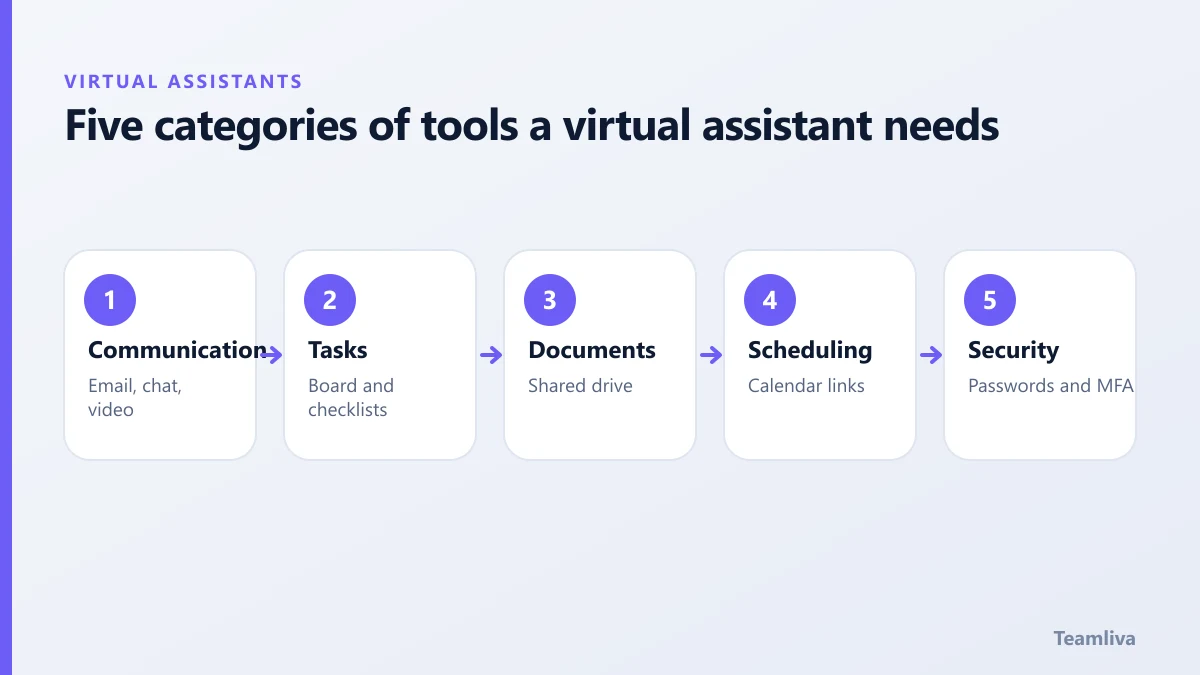
The core virtual assistant tools are email and calendar, team chat, a task board, a shared drive, video calls and a password manager with multi-factor authentication. Add a CRM, help desk or accounting software only when the role needs it.
A good virtual assistant is only as effective as the tools you give them access to. The good news is that the stack is small. A handful of well-chosen tools, set up safely, covers most administrative and support work. This guide lists the categories, what to look for and how to grant access without exposing your business.
The five categories
1. Communication
You need a fast channel for quick questions and a formal one for records.
- Email and calendar: a business account for the assistant or delegated access to yours.
- Team chat: for daily questions and status updates.
- Video calls: for weekly reviews and onboarding.
Set expectations: chat for quick questions, email for anything that needs a record, calls for weekly reviews.
2. Task and project tracking
A simple board where tasks move from "to do" to "done" makes remote work visible. Every task should have a title, a due date and a link to any instructions. Keep it simple. If the board is complicated, nobody updates it.
3. Documents and knowledge
Store instructions, templates and checklists in a shared drive. The most valuable file you can create is a "how we do things" folder with step-by-step guides for recurring tasks. It lets a new assistant, or a replacement, pick up quickly. Use our onboarding guide for a suggested structure.
4. Scheduling
Calendar tools with booking links reduce back-and-forth. Give the assistant delegate access to your calendar, with clear rules about which meetings they may accept, move or decline.
5. Security tools
This is the category people skip and regret.
- Password manager: share access to logins without sharing the passwords themselves.
- Multi-factor authentication: on email, finance and customer systems.
- Separate accounts: unique login for the assistant, never a shared one.
Read more in virtual assistant data security.
Role-specific tools
Depending on the role, add:
- CRM for sales and customer follow-up.
- Help-desk software for support inboxes.
- Accounting software with view or limited access for bookkeeping support.
- E-commerce platform access for listings and orders. See e-commerce virtual assistant tasks.
- Practice management or EHR access for healthcare tasks, only under the right agreements.

How to grant access safely
- Create a named account for the assistant in each system.
- Give the lowest level of permission that lets them do the job.
- Use a password manager instead of sending passwords in chat.
- Turn on multi-factor authentication.
- Keep a list of what they can access and review it every quarter.
- Remove access on the day the engagement ends.
Who pays for the tools?
Business systems should sit in your accounts so you control access and data. Personal productivity tools can be the assistant’s own. Put the arrangement in writing. If you use a managed provider, ask whether devices, security software and licences are included.
Keep the stack small
Every extra tool is another login to secure and another place work can be lost. Start with the essentials, then add a tool only when a real problem justifies it.
Choosing virtual assistant tools without overspending
You can cover most needs with free or low-cost versions. Before buying anything, ask:
- Does this solve a problem we actually have?
- Can the assistant do the job with what we already own?
- How easily can I remove access when the engagement ends?
- Does the tool log who did what?

A simple rhythm for using the tools
- Chat: quick questions during overlap hours.
- Task board: every task has one card, a due date and a link to instructions.
- Shared drive: all guides and templates live in one place, named clearly.
- Weekly call: a short video review of what is done, what is late and what is next.
Mistakes to avoid
- Running several chat tools at once, so messages get lost.
- Keeping instructions in private messages instead of the shared drive.
- Sharing one login between two people.
- Forgetting to review who has access each quarter.
If you also want ideas for structuring the tasks themselves, see virtual assistant tasks to delegate. For a broader take on measuring work, the remote management guide covers cadence and visibility. The US Small Business Administration offers general guidance on running a small business.
Key takeaways: virtual assistant tools
- The right virtual assistant tools are a small stack: communication, tasks, documents, scheduling and security.
- Give the assistant a named login for every system, never a shared one, and use a password manager with multi-factor authentication.
- Keep all instructions in a shared drive, not in private messages, so they survive staff changes.
- Add specialist tools such as a CRM, help desk or accounting software only when the role needs them.
- Review who has access every quarter and remove it on the day an engagement ends.

Need help setting it up?
Teamliva assistants work on controlled devices and can be onboarded to your existing tools. See our virtual assistant services or contact us to discuss your setup.
Frequently asked questions
What software does a virtual assistant need?
At minimum: email and calendar, a chat tool, a task board, shared documents, a password manager and video calls. Add a CRM or industry-specific software if the role needs it.
Should I pay for tools or does the assistant bring their own?
Business systems should be your accounts so you control access. Personal productivity tools can be the assistant’s. Agree it in writing.
- #Teamliva
- #TeamLiva
- #VirtualAssistant
- #VirtualAssistantServices
- #HireAVirtualAssistant
- #VirtualAssistantTools
- #SoftwareStack
- #ProductivityTools
- #RemoteWork